
Staying on a rigid production schedule requires strong planning by shop owners and production managers. For many shops, that means using automations to ensure regularly scheduled tasks are configured in advance, saving everyone time. That’s precisely what Printavo’s Time-Based Automations are built for.
What it is
Time-Based Automations lets Printavo users add a time delay between when an automation is triggered and when the action runs. These time-based settings include day of the week, time of day, and time zone. If necessary, users can skip the action if the quote or invoice status has changed before triggering.
It also adds a new trigger: when approval is sent to a customer, to build customized, automated follow-ups after quotes or invoices go out. This trigger reduces the time and effort employees spend manually emailing clients about overdue invoices, requests for Google reviews, and other standard post-sale communications.
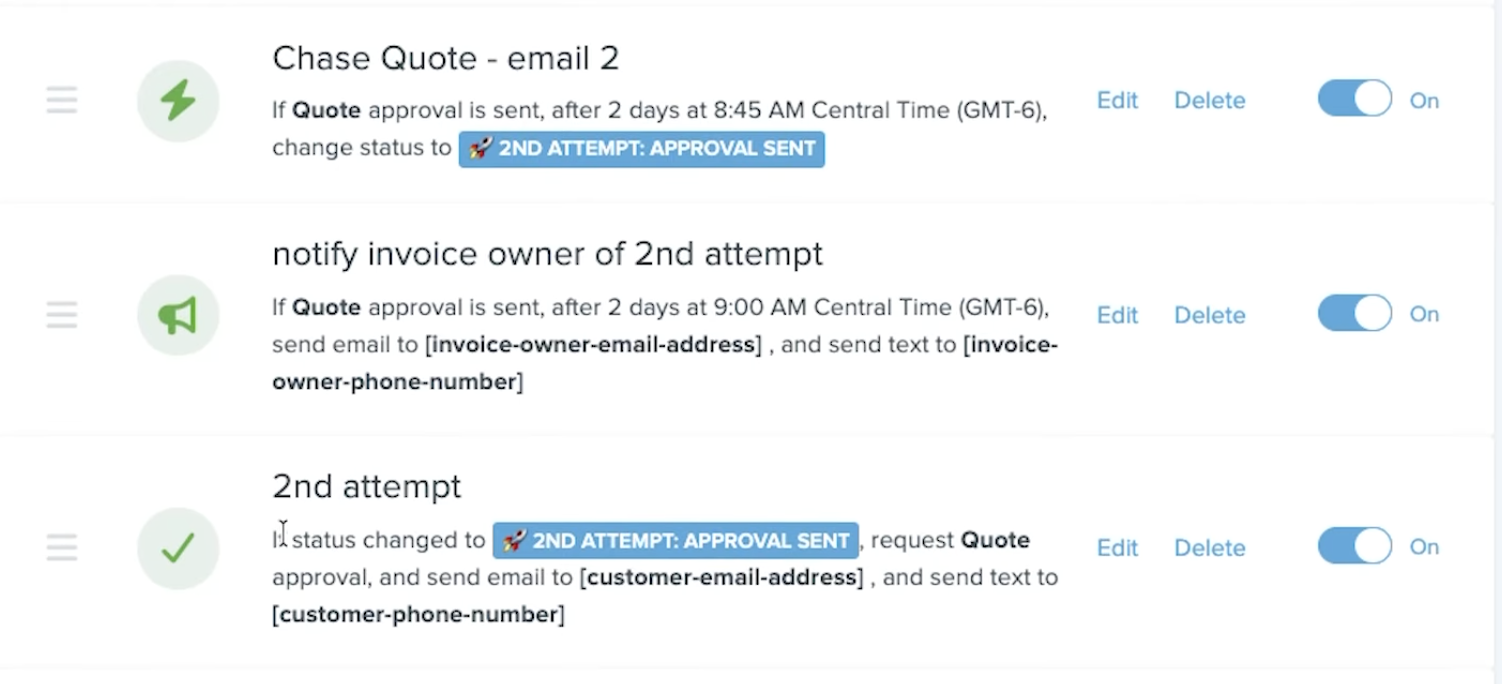
Here’s an example of what a trigger would look like
- New automation trigger: Example: “If approval is sent to customer.”
- Updated action: Example: “Change status to ___” now includes an optional condition:
“Only do this if the quote/invoice status was not changed during the wait period.”
Note: A 1-day delay = next calendar day (not 24 hours). Ex: Trigger at 7 pm Monday, action runs Tuesday at 4:30 pm if scheduled.
Why it’s important
It keeps follow-ups consistent
Time-based automations give shop owners greater strategic control over everyday tasks such as follow-ups and reminders. This is key, particularly when production is on a tight deadline or moving into a busier season.
It customizes automations based on business needs
Instead of triggering automations that are no longer relevant, users can configure automations only to run when they’re needed. This keeps the entire shop on the same page and improves the flow of customer communication.
Use Cases
Here are a few examples of how you can use time-based automations in your shop. You can also adjust the timeframe on these examples to fit your shop’s needs/workflow:
- Quote Follow-Up 1: Quote sent → wait 5 days → Send customer a reminder if they haven’t approved yet.
- Quote Follow-Up 2: Quote sent → wait 7 days → Send customer a reminder if they haven’t approved yet.
- Art Approval 1: Mockup sent → wait 2 days → Send customer a reminder if they haven’t approved yet.
- Art Approval 2: Mockup sent → wait 3 days → Send customer a reminder if they haven’t approved yet.
- Order Payment Reminder: Status changes to “Awaiting Payment” → wait 7 days → Change status to “Needs Attention” (if the order is still unpaid)
- Order Pickup Reminder: Automated notification to customer that order is ready → wait 2 days → Send customer a reminder if they haven’t arranged pickup
How to set it up
Inside your Printavo account, select Account Settings by building (or editing) an automation, then:
- Choose a trigger
- Add a delay
- Pick your action
- Optionally enable “only run if no status change occurred during the wait.”
For more details on using features like Time-Based automations, check out the Printavo Help Center.
Note: This feature is available for Printavo Premium accounts. If you’re interested in signing up for Printavo or upgrading to Premium, contact us today to get started.

0 Comments